Most
Windows users who run the email client Thunderbird run 32-bit versions
of the client. How I know that? Simple: the only version offered on the
official Thunderbird download website is 32-bit for Windows.
While
it is possible to grab the 64-bit version, users have to actively
search for it to download it as there is virtually no reference on the
official Thunderbird website that indicates that such a version exists.
When you open the "all"
download page
on the Thunderbird website, you will notice that only Linux users get
to choose between 32-bit and 64-bit applications. Mac users get the
64-bit version of Thunderbird automatically, and Windows users get the
32-bit version of Thunderbird.
Check which version you run
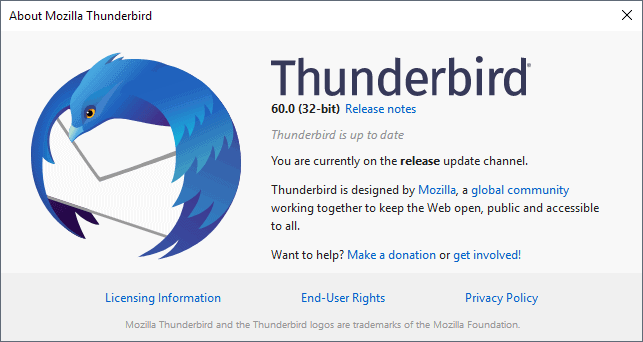
The very first thing you may want to do is check if you run a 32-bit or 64-bit version of the email client.
- Open Thunderbird if it is not open already.
- Select Help > About Thunderbird.
The page lists the version of the client and whether it is 32-bit or 64-bit.
Migrating from 32-bit to 64-bit
You need to be aware of a couple of important things before you migrate.
First,
that 64-bit versions are not officially supported at this point in
time. While that does not mean that 64-bit applications won't run just
as good as 32-bit versions of Thunderbird, you may run into issues that
are exclusive to the 64-bit version.
Second, that 64-bit versions
of Thunderbird may perform worse than 32-bit versions under certain
circumstances. Systems with a low amount of RAM, weak processors, and
older computer systems need to be mentioned specifically.
64-bit
applications may provide benefits: better RAM utilization which is great
if your email databases are large, and you may even see speed
improvements and get security improvements out of it as well.
The process
The
process of migrating a 32-bit installation of Thunderbird to 64-bit on
Windows is straightforward. All you have to do is download the 64-bit
installer, run it, and Thunderbird will do the rest.
Since you are installing a version that is not supported officially, you may want to
back up the Thunderbird data folder or even the entire system partition before you start the process. You can also
use MailStore Home to backup all mails locally.
- Close all instances of Thunderbird.
- Head over to the official Mozilla FTP
site and download the 64-bit version of Thunderbird for your locale
from there. Select the most recent version, then win64, and then the
locale to open the download folder.
- Click on the download link to download the 64-bit version of Thunderbird to the local system.
- Run the installer afterward.
The
installer does not reveal to you that you are installing the 64-bit
version of Thunderbird. You could select custom installation at one
point to install it to a different directory than the 32-bit version so
that you could go back to the 32-bit version without installing it anew.
Note though that both installations will use the same user data.
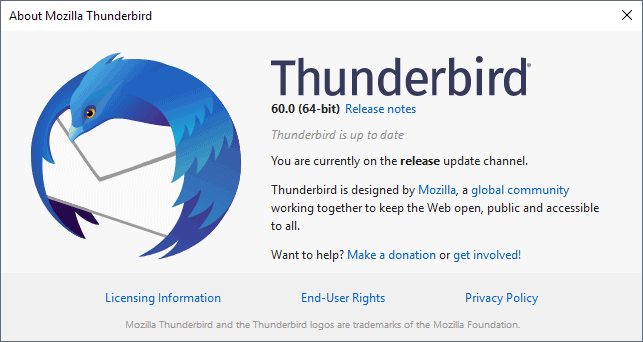
Thunderbird
should start up normally and you can check that you are running the
64-bit version now by selecting Help > About Thunderbird. Go back to
the 32-bit version if you notice any issues afterward.
Closing Words
I
don't have scientific proof but it seems to me that the 64-bit version
of Thunderbird is more responsive than the 32-bit one on my system with a
good number of emails in the database (120k). Folder switching seems a
lot faster and folders display emails more quickly to before.
fonte: https://www.ghacks.net/2018/08/07/how-to-migrate-32-bit-thunderbird-to-64-bit-on-windows/


