Mais um caderno de notas que reúne experiências no mundo de TI. Focado em infraestrutura de redes; sempre adaptando para evoluir, pois "Resistir é inútil, você será assimilado" (frase BORG - Star Trek)
Cloud storage has one important advantage. We can access the files
stored on the cloud from anywhere on any device with an internet
connection. So what’s about the security of the files stored? If you
have concern about your important files stored on the cloud, here I can
tell you how to safeguard your files. Encrypt and password protect your
important files before storing it on the cloud. No matter which cloud
storage service you are using. Here I am introducing a free software
called BoxCryptor that you can use seamlessly on Dropbox, Google Drive,
SkyDrive, Box or SugarSync to protect files.
How to Secure Important Cloud Storage Files with AES-256 Standard to Encryption
Below are the steps to encrypt your files before storing it on to the
cloud and thus ensure protection of your files. Also the following is
the complete step to use BoxCryptor to encrypt and decrypt data.
Download BoxCryptor for free. It’s available for all major OS.
Install the software and reboot your system.
Run BoxCryptor and you will see the Welcome Window of BoxCryptor.
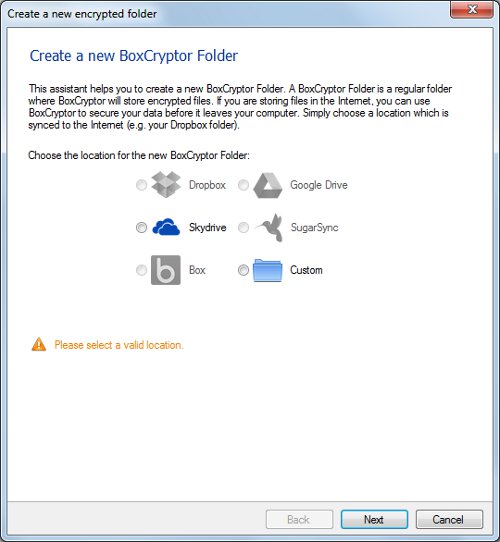
Click on “Create a new encrypted folder”. You will see a Window similar
to the one below (screenshot 1).
Select your desired storage location. You can choose your installed
cloud storage service. For example here I am choosing SkyDrive.
Give a Folder Name in the filed and click Next.
Choose a New Device Letter.
You may need to provide a password. Click Finish.
Now you can see one folder in the SkyDrive or your opted Cloud Drive, which is the encrypted one.
Also when you go to My Computer on your PC there you can see a new BoxCryptor Drive.
Drag and Drop the files you want to encrypt on to the folder
mentioned in step 8. The file on this folder can not open as it is
encrypted. It will by synced online.
You can access the encrypted file through the BoxCryptor Drive mentioned on step 9 that’s from My Computer.
Screenshot 1
That means your encrypted file can’t be opened by any
other person on any other machine. To access your files on any other
machine just install your cloud storage and also the BoxCryptor software
on them. While you run the program on the new machine, you need to
choose “Open Existing” instead of create new. Keep your password ready.
Any doubt? Post in comments.
If you are using Google Drive Back up and Sync on your PC, you might have asked the question how to delete files on Google Drive on My PC
that without affecting the web stored files. This’s because syncing is
essential when we use cloud storage services and it’s part of almost all
cloud storage providers. You may have also synced your files. What
happens to it when you delete the files from your PC? It’ll also vanish,
if you are careless.
Recently I have written an article that shows how to encrypt and protect your cloud stored files.
I am happy to know that it was useful for many of you from your email
responses. But do you know there are some minor things that users do not
take care while using cloud services? There are certain things that you
must take care to save your data stored on the cloud.
If you are using Google Drive on your PC, you may have stored lots of
images or other files to it already. Do you notice one thing that when
you delete one file / files / folder / folders on your Google Drive
folder on your computer, it automatically get deleted from the Google
Drive web application / services too? Yes it happens! It happens with
all cloud storage services in syncing mode.
Delete Files on Google Drive on My PC Without Affecting the Cloud Stored Files on the Web
So if you don’t want this to happen with your Google Drive, just
remove the syncing. This is the answer to your question how to delete
files on Google Drive on my PC without affecting the web stored files.
Before deleting the Google Drive stored files on your Computer for
any reason, you must remove the syncing first. Other wise you will loss
your files stored on the web too. Here we can see how to remove the syncing of Google Drive.
Steps to Delete Your Google Drive Stored Files on Your PC without Affecting the Files Stored on the Web
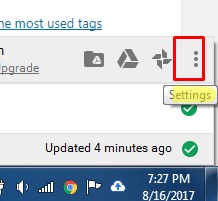
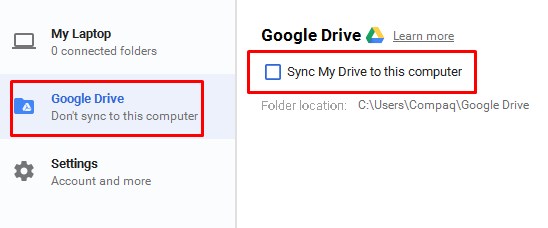
Step 1: Click the Google Drive icon, now it’s called “Back up and Sync”, on the taskbar on your computer and select Preferences from the settings.
Step 2: Uncheck the box next to Sync My Drive to this computer.
Step 3: Click OK to Apply changes.
Now You are OK to Delete the Google Drive Stored Files on Your PC
Now you can delete all the files stored on the Google Drive folder on
your Computer without affecting the files stored on on the Web.
Next time if you think to sync your Google Drive again with your
desktop, my suggestion is remove the Google Drive app completely from
your PC. Then again download and install it and sync.
You can also consider to re sync from settings, preferences and again
enable the “Sync My Drive to this computer”. This will also work.
Important Update on 13.09.2017
The Google Drive app got lots of changes since my above tutorial on
Feb’2013. But between I made some modifications to the above tutorial.
But I think I should add some more to this as per the latest Google
Drive capabilities. See it below.
How to Keep Some Files On Google Drive on PC and Delete Others Without Affecting the Web Stored Files?
The above method is to remove Google Drive from your PC without
affecting the web stored files. But now if you want to keep the Google
Drive on your PC and delete only few files, there are other method. Now you have more control over the files you delete from your computer on Google Drive!
Steps:
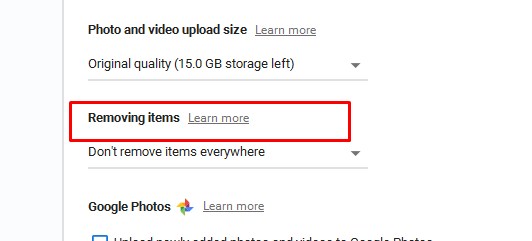
Go to preferences from the settings as detailed in the first part of this tutorial above. Screenshot also given above.
Now look for an option “removing items”.
There are three options.
Remove items every where
Don’t remove items every where
Ask me before deleting items every where.
The second option, i.e., “Don’t remove items every where” will do our job.
That’s all.